RESOURCES
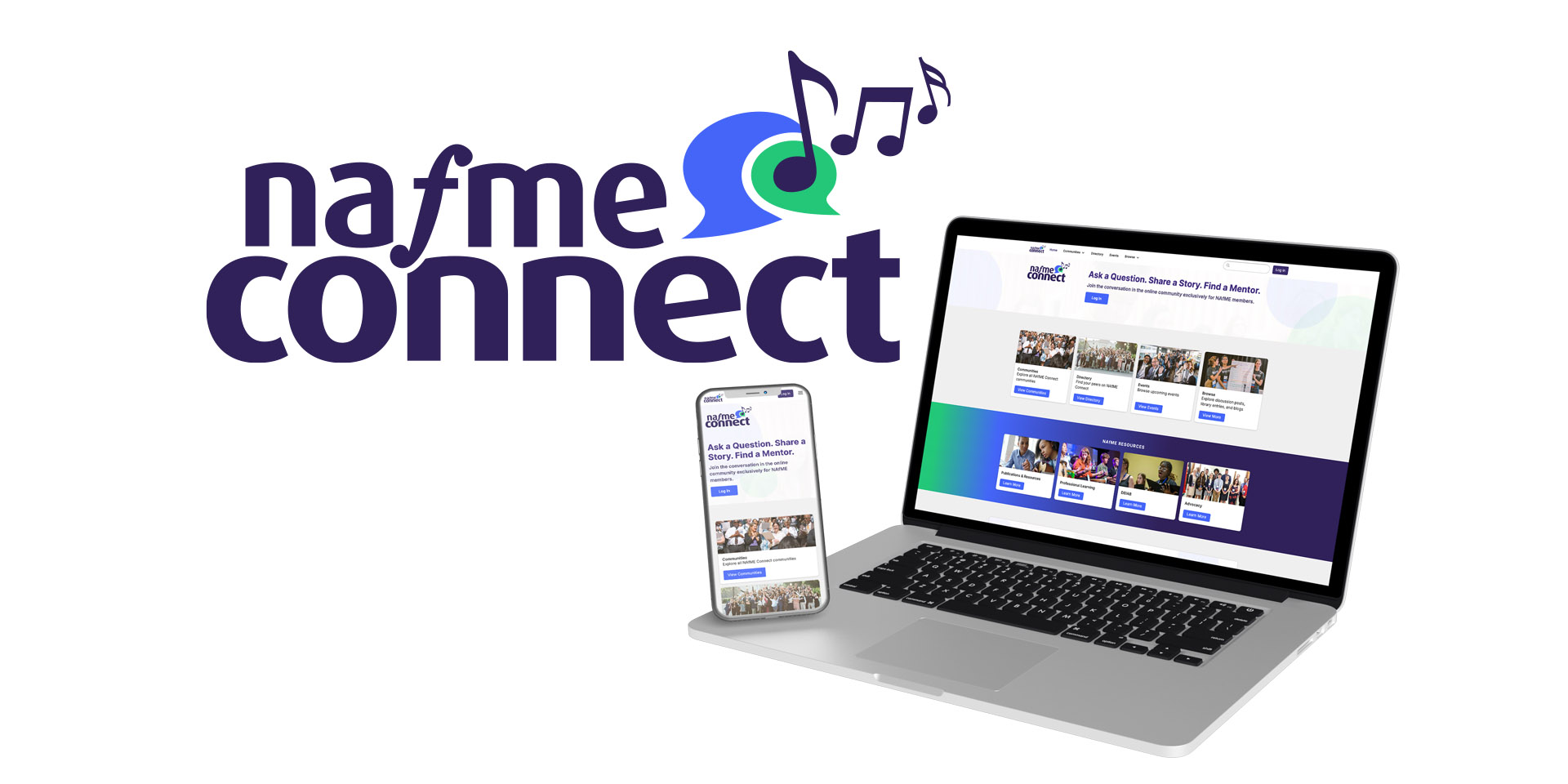
NAfME Connect Community Quick-Start Guide
Contents
- Sign In to Connect
- Complete or Update Your Profile
- Review Your Privacy Settings
- Search Connect
- View Your Communities
- Find and Request to Join Another Community
- Subscribe to a Community Discussion Digest
- View Posts and Discussions
- Start a New Discussion
- Reply to a Discussion on the Web
- Reply to a Discussion via Email
- Upload an Item to a Community Library
- Download an Item from a Community Library
- Manage Community Notifications
- View Another Member’s Profile
- Sign Out
- For more information on Connect
Sign in to Connect
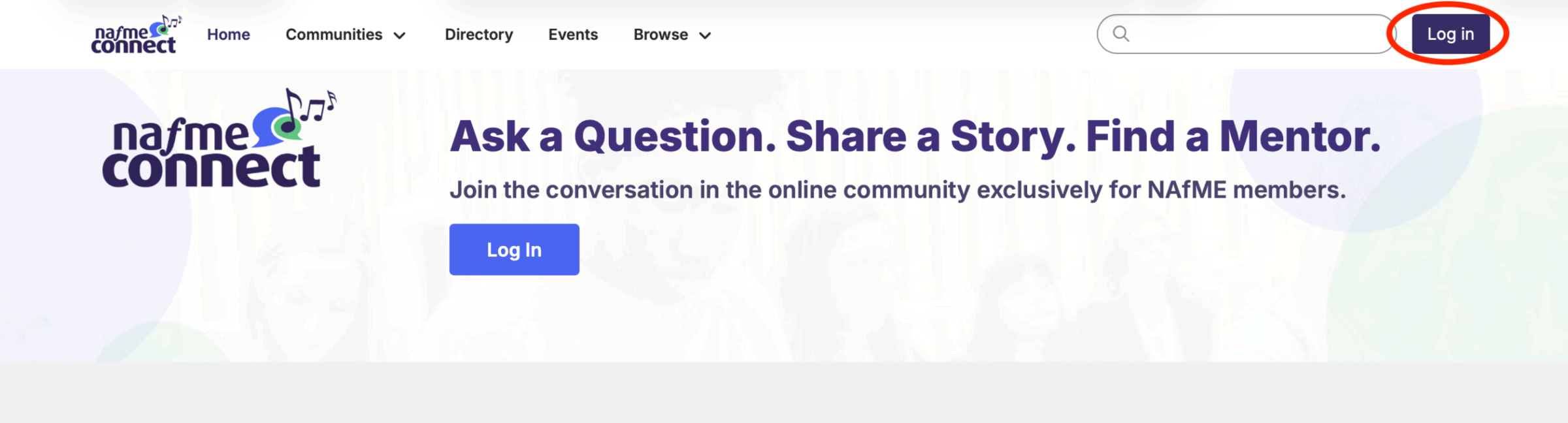
- Navigate to the NAfME Connect Community(opens in new tab).
- Select Log In in the upper right.
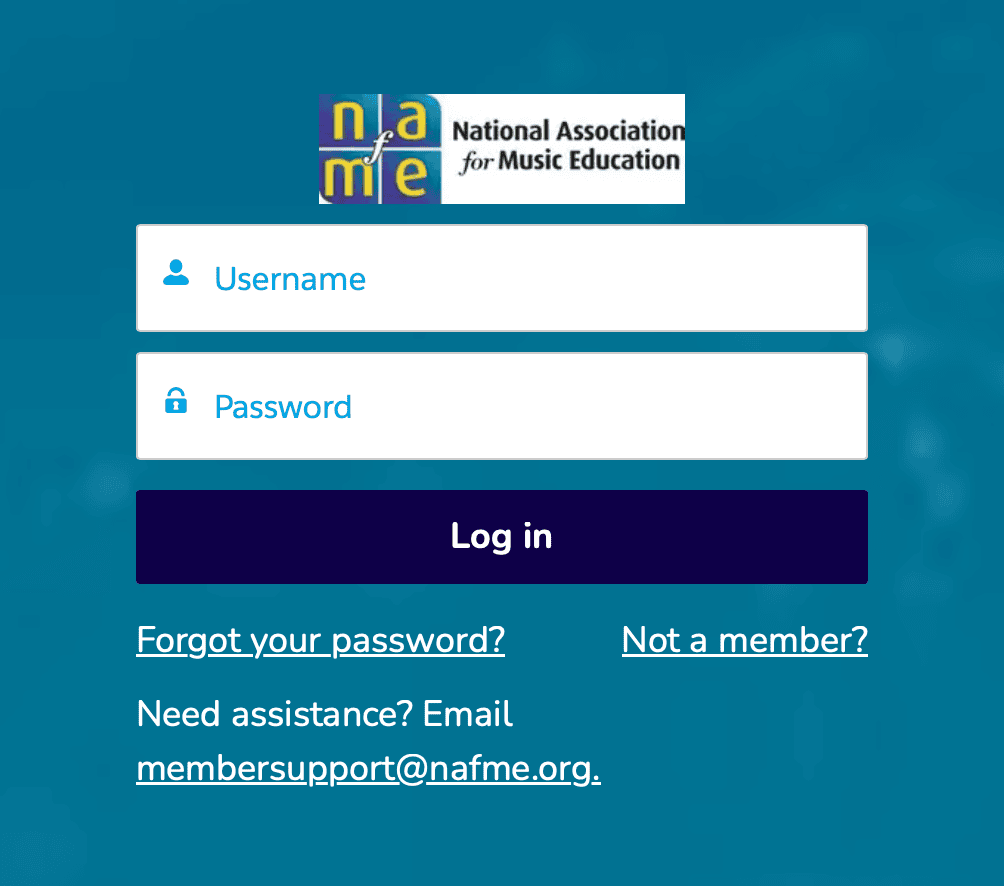
- You will be automatically redirected to the NAfME Membership Portal login page(opens in new tab).
- Sign in using the same username and password you use to renew your membership, access your journals, or log in to NAfME Academy.
- You will then be redirected to Connect(opens in new tab).
Complete or Update Your Profile
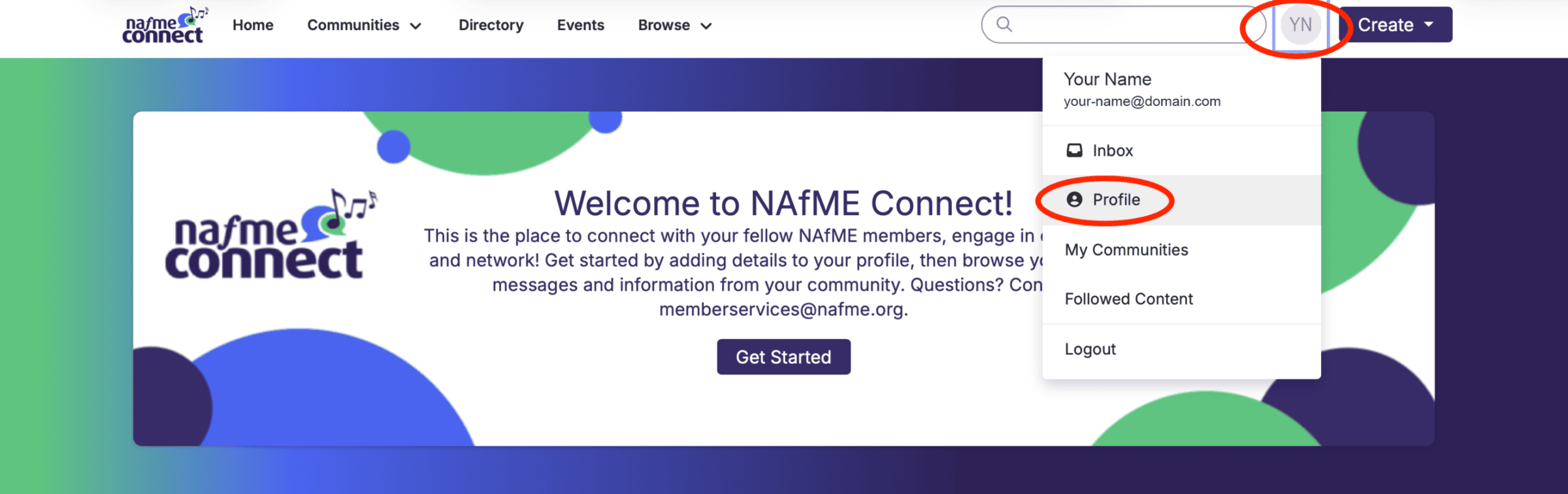
- Select your profile photo/Profile(opens in new tab) from the menu.
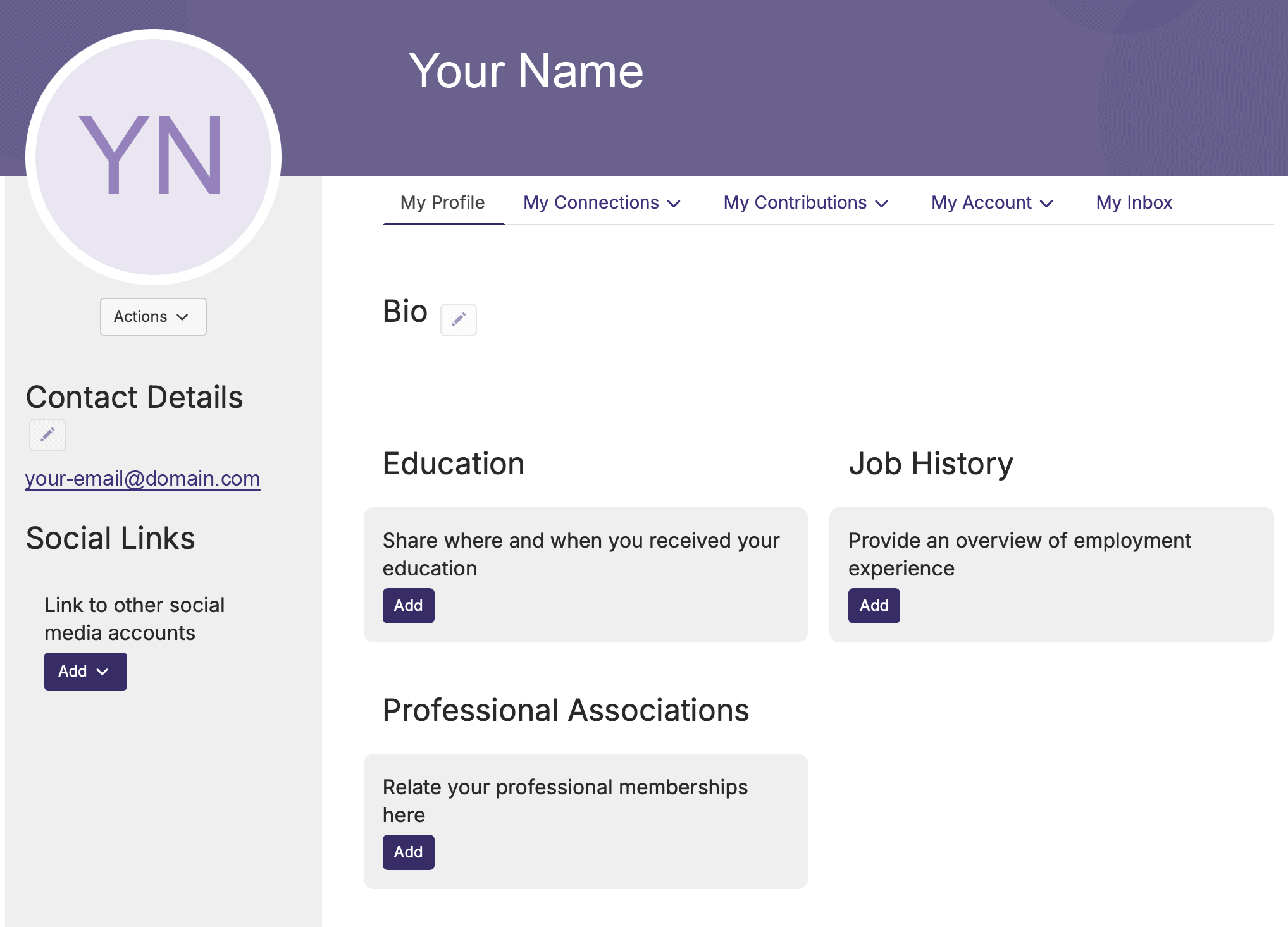
- Select the pencil icon (. ) to edit, or the Add button to add information to each section.
- Review the available profile information.
- Add or update information such as:
- Profile photo
- Contact Details
- Social Links
- Bio
- Education
- Job History
- Professional Associations
- Save your changes.
Quick Tip
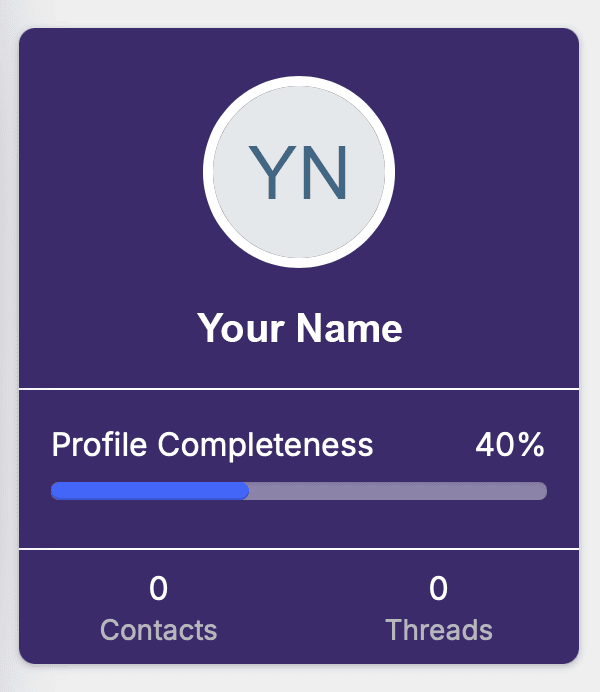 A completed profile helps other NAfME members identify you and provides useful professional context when participating in discussions. The member home screen(opens in new tab) will show your Profile Completeness percentage.
Review Your Privacy Settings
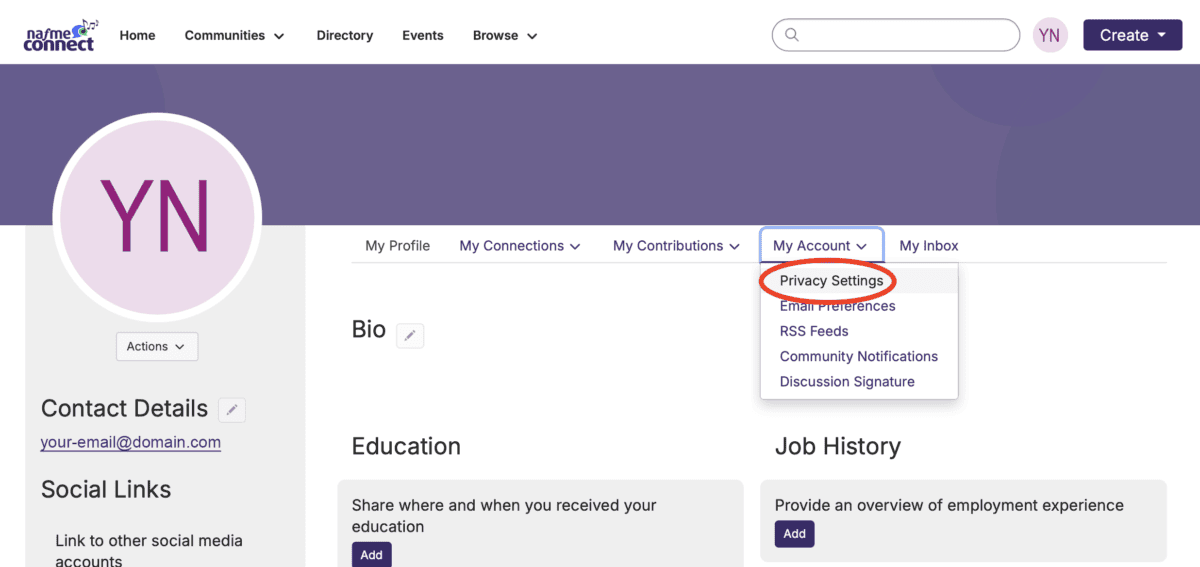 Open your profile/account settings(opens in new tab).
- Locate Privacy Settings under My Account.
- Review who can see available profile information.
- Adjust settings as desired.
- Save any changes.
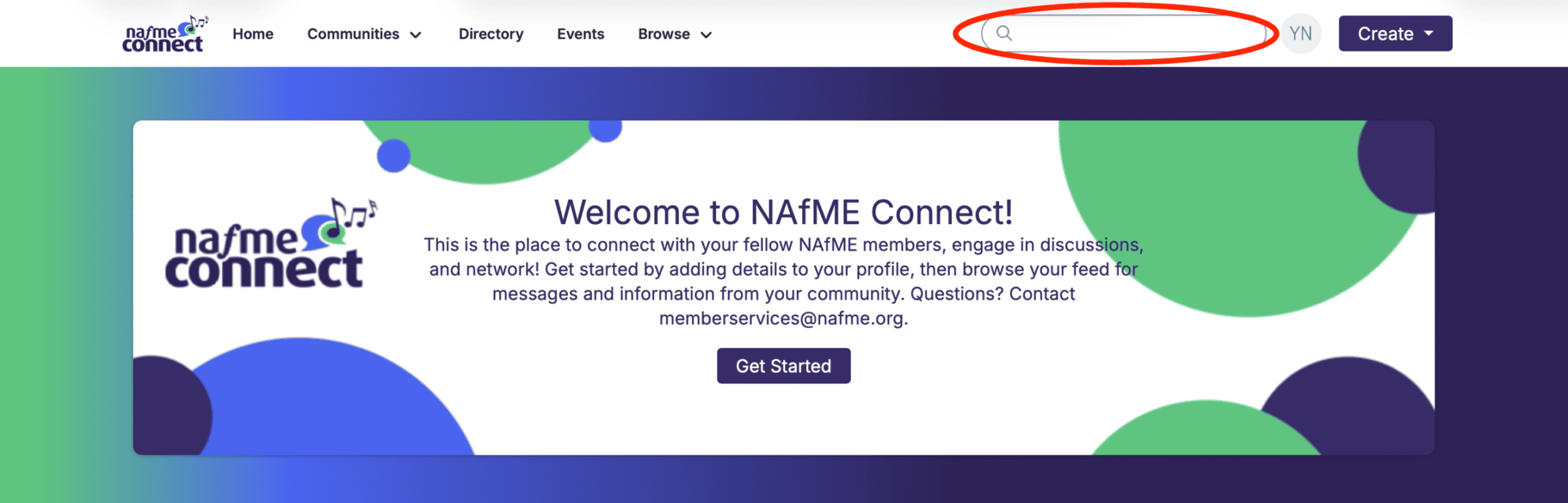
Search Connect
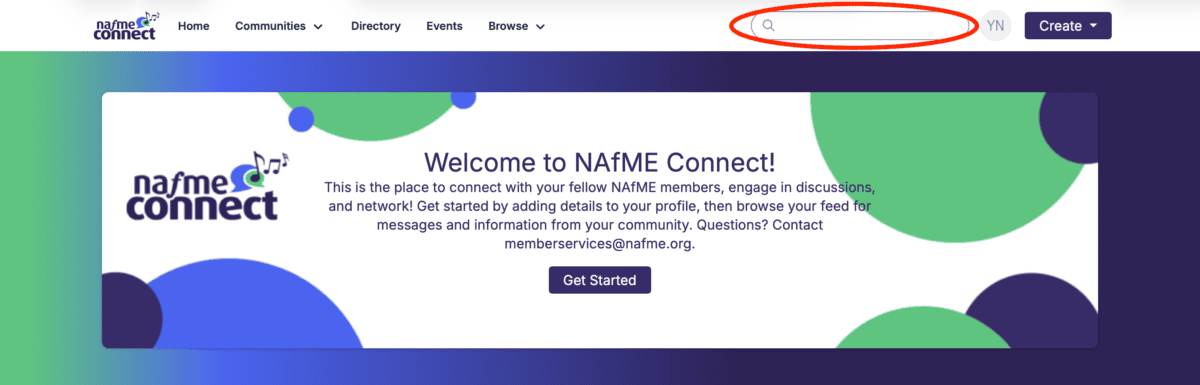 Locate the Connect Search field.
- Enter a relevant keyword or phrase.
- Submit the search.
- Review the results.
- Open a relevant result.
- Use filters to narrow the results.
View Your Communities
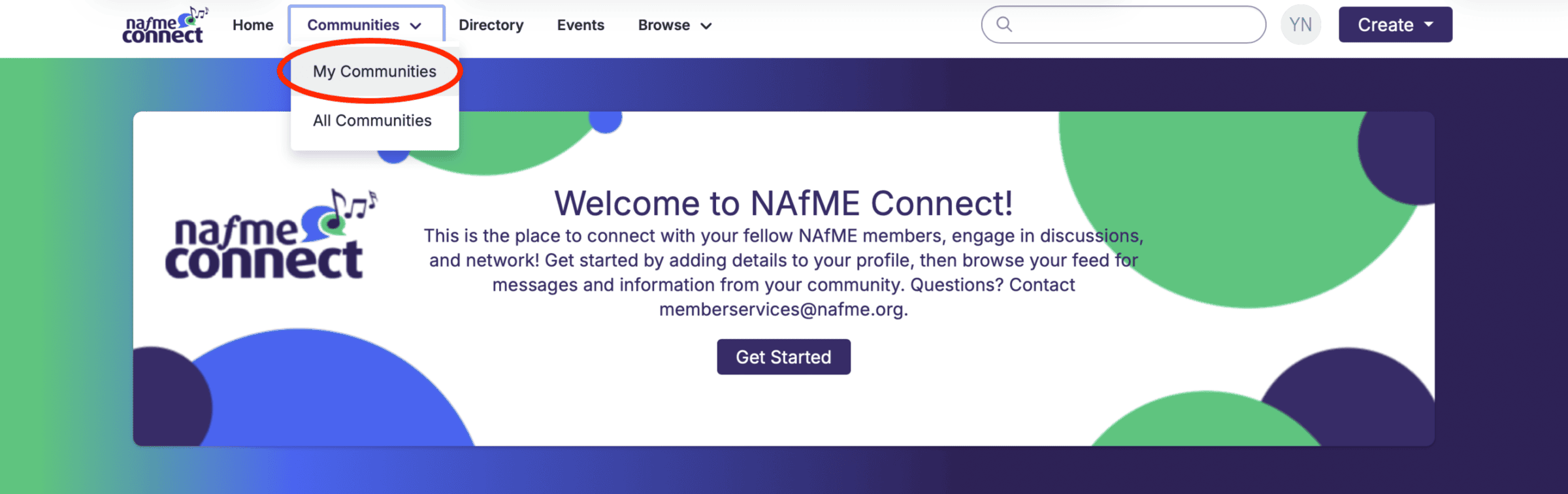
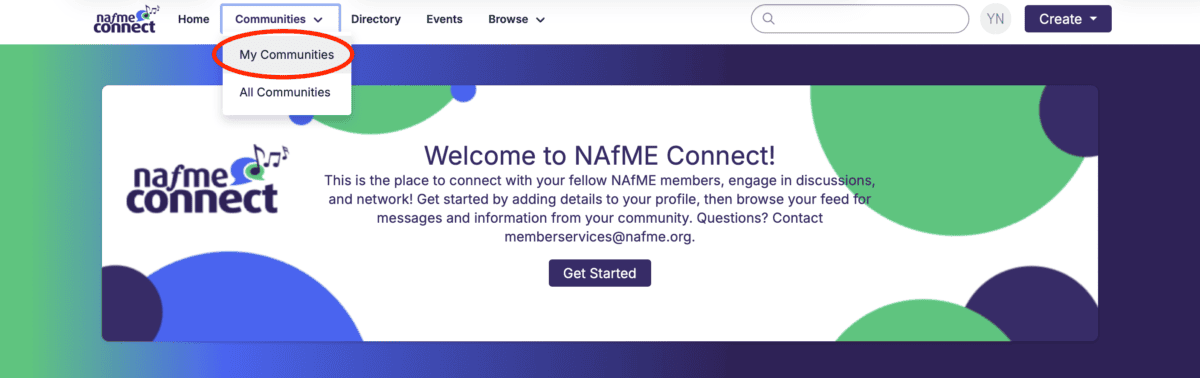 Select Communities at the top of the main navigation bar.
- Select My Communities under Communities to see the various Communities where you are a member.
- Select All Communities to see other Communities you may request to join.
- Select a community name to open it.
Find and Request to Join Another Community
 Navigate to Communities(opens in new tab).
- Browse or search the available communities.
- Select the community you are interested in joining.
- Review the community information.
- If the community is private but accepts membership requests, locate Join or Request to Join the Community.
- Submit the request.
Important
Some NAfME Connect communities may have membership requirements. A Join or Request to Join option may not be available for private communities.
Subscribe to a Community Discussion Digest
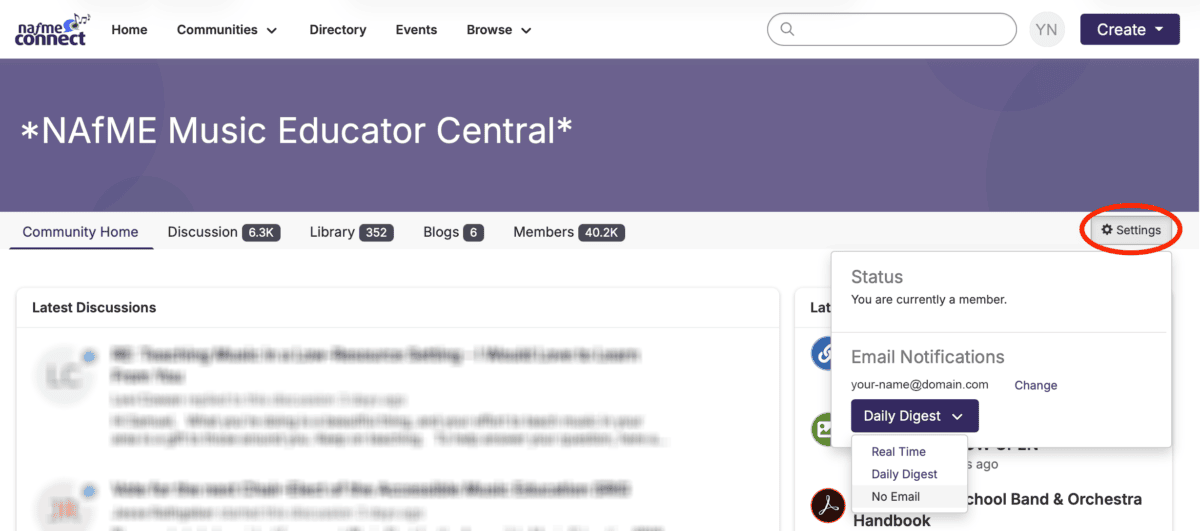 Navigate to Communities(opens in new tab).
- Open the desired community.
- Locate the community’s notification/subscription settings under Settings.
- Select the desired email preference.
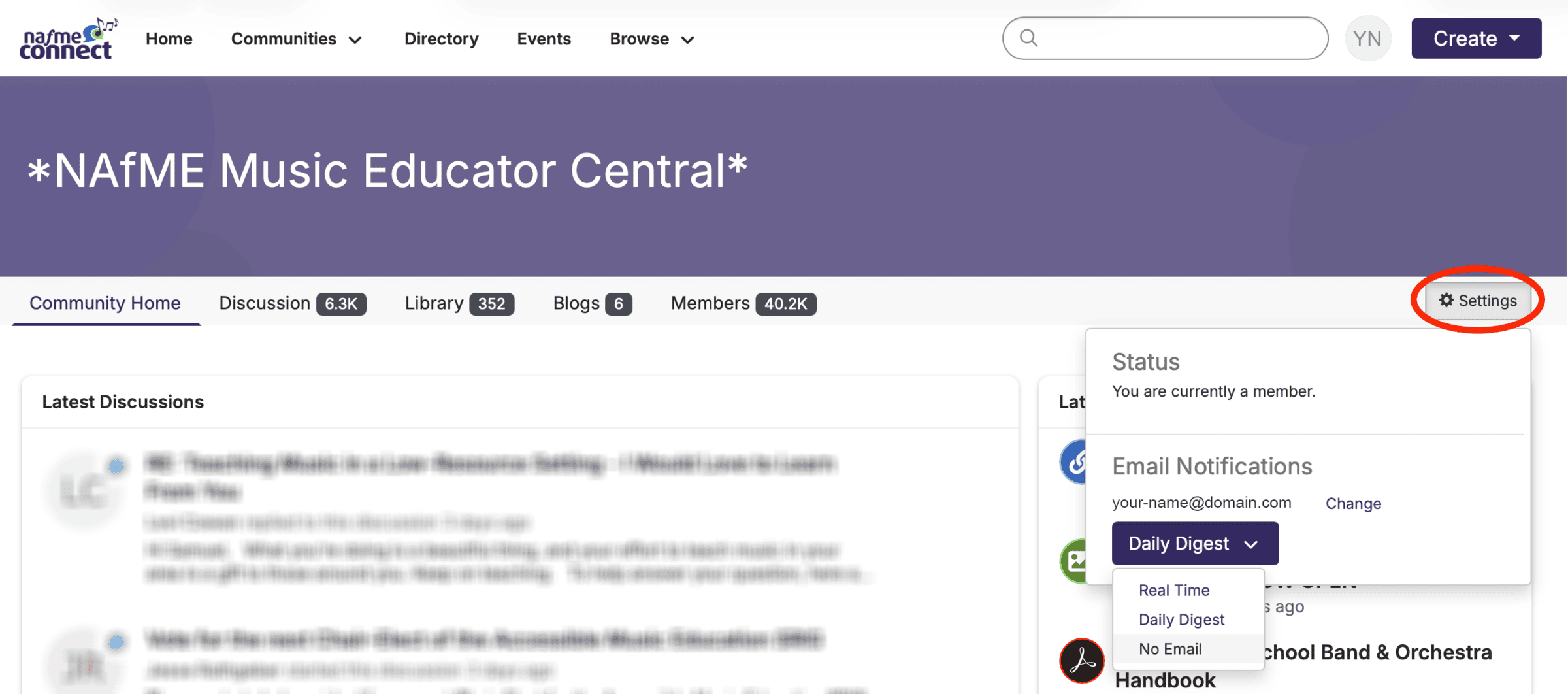
Options include:
- Real Time — Receive individual discussion messages shortly after they are posted.
- Daily Digest — Receive a daily summary of discussion activity.
- No Email — Do not receive discussion posts by email.
- Save or confirm the selected preference if required.
Quick Tip
Daily Digest is generally a good starting point for users who want to follow community conversations without receiving an individual email for every post.
View Posts and Discussions
- Navigate to a community.
- Open the Discussions area.
- Review the available discussion topics.
- Select a discussion subject/title.
- Read the original post and available replies.
- Navigate back to the discussion listing.
Start a New Discussion
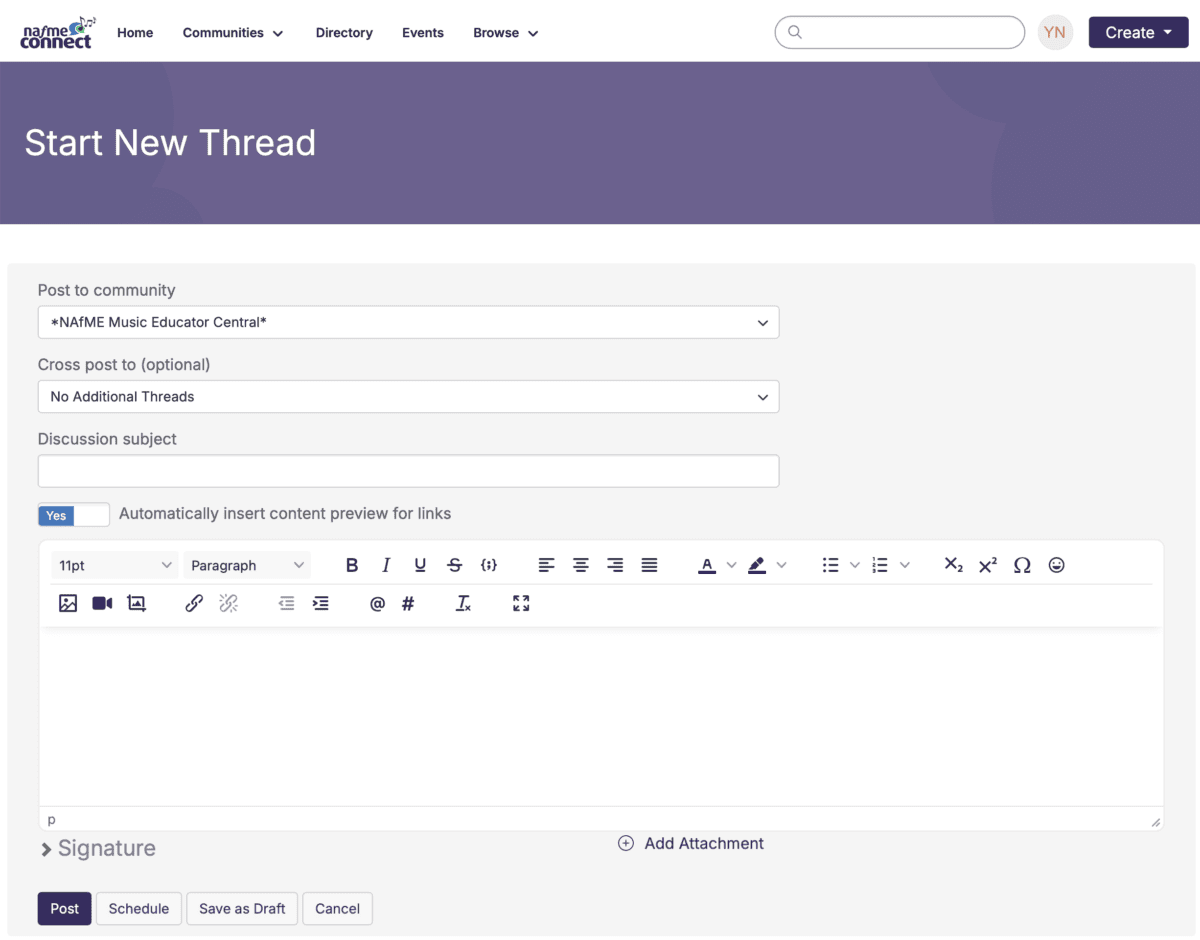 Navigate to the appropriate community.
- Open Discussions.
- Select Post New Message.
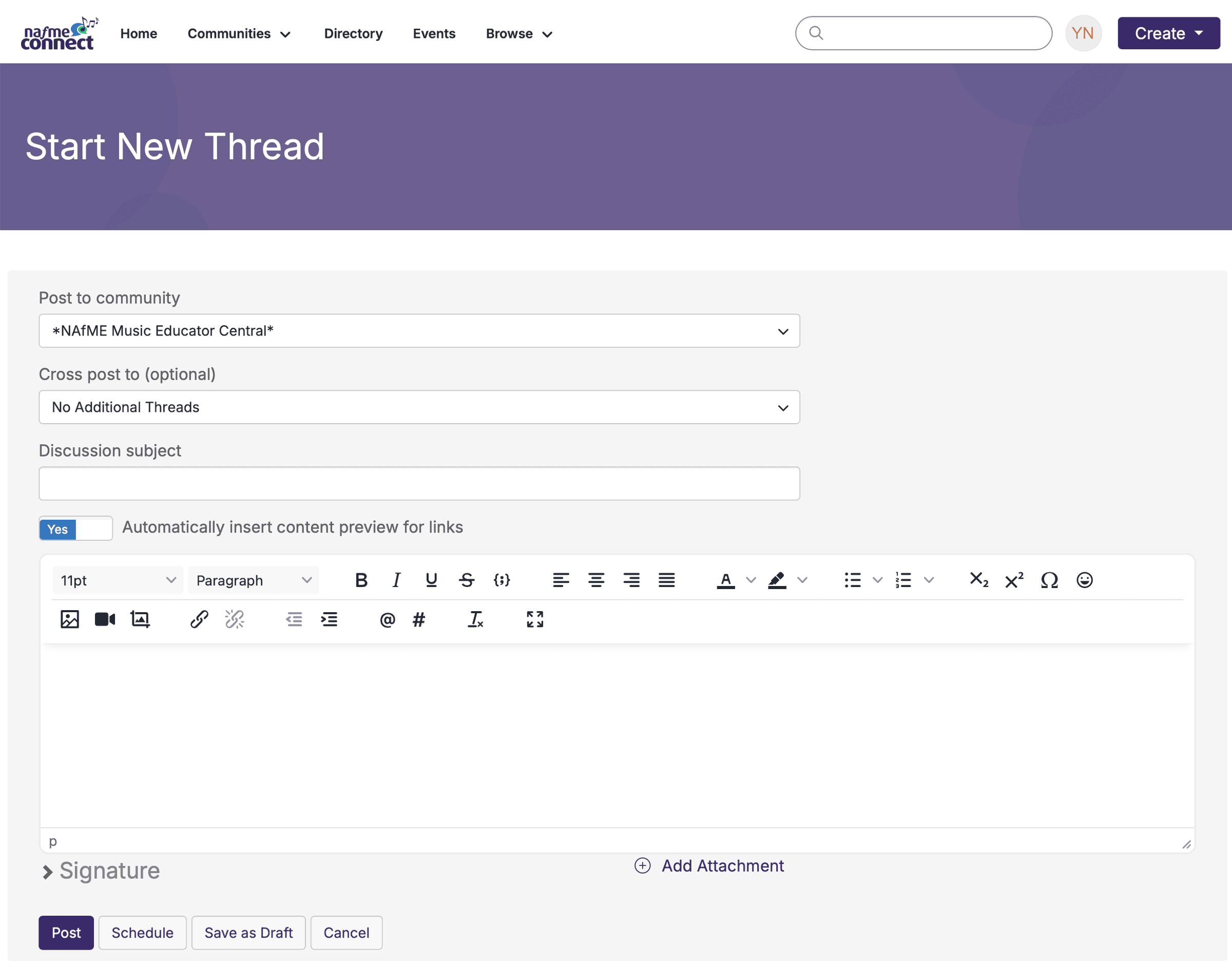
- Enter a clear subject.
- Enter your message.
- Add links or attachments if needed and permitted.
- Review the message.
- Select Post.
Best Practice
Use a descriptive subject line so members can understand the topic before opening the discussion.
Recommended: Suggestions for Beginning Band Recruitment
Not Recommended: Question
Reply to a Discussion on the Web
- Open a community discussion.
- Locate the message you want to respond to.
- Select Reply.
- Enter your response.
- Review the message before submitting.
- Select Post.
Important
Individual replies reply specifically to the person, but are posted publicly in the discussion, not privately.
Reply to a Discussion via Email
 Open a discussion notification or digest email from Connect.
- Locate the discussion/message you want to respond to.
- Use the available Reply option provided by the email*.
- Enter your response.
- Send the email.
- Open Connect and locate the corresponding discussion. Verify that your email response appears in the discussion thread.
Important
When replying through email, review the message carefully before sending. Depending on the discussion configuration, your reply may be posted to the community rather than sent only to the person whose message you are viewing.
*Do not use the reply button within your email application, use the links within the email itself which will open/create a new email. Please keep in mind that if you have an email signature with contact information, that will also post to the discussion.
Upload an Item to a Community Library
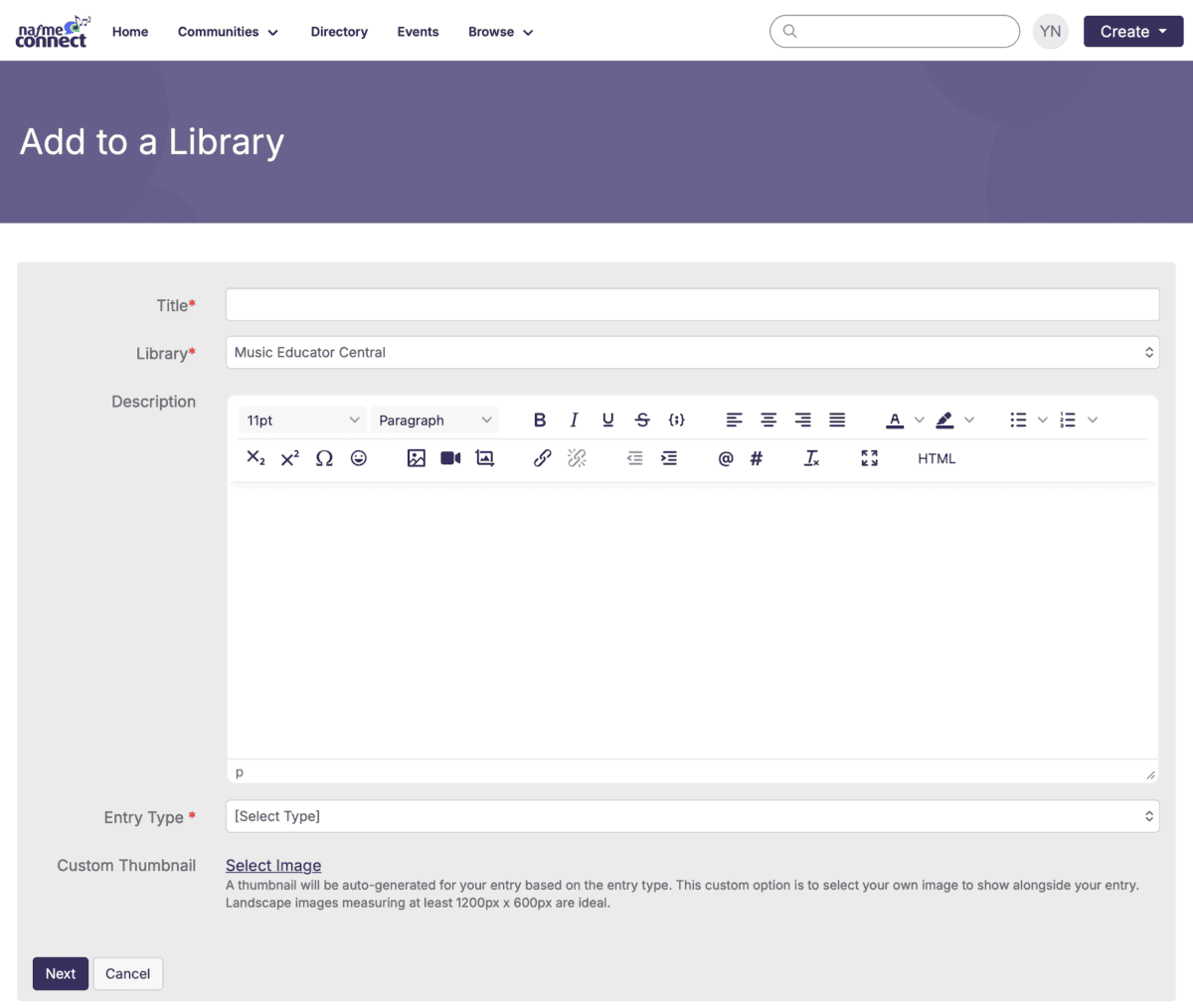 Navigate to the appropriate community.
- Open Library.
- Select Create Entry.
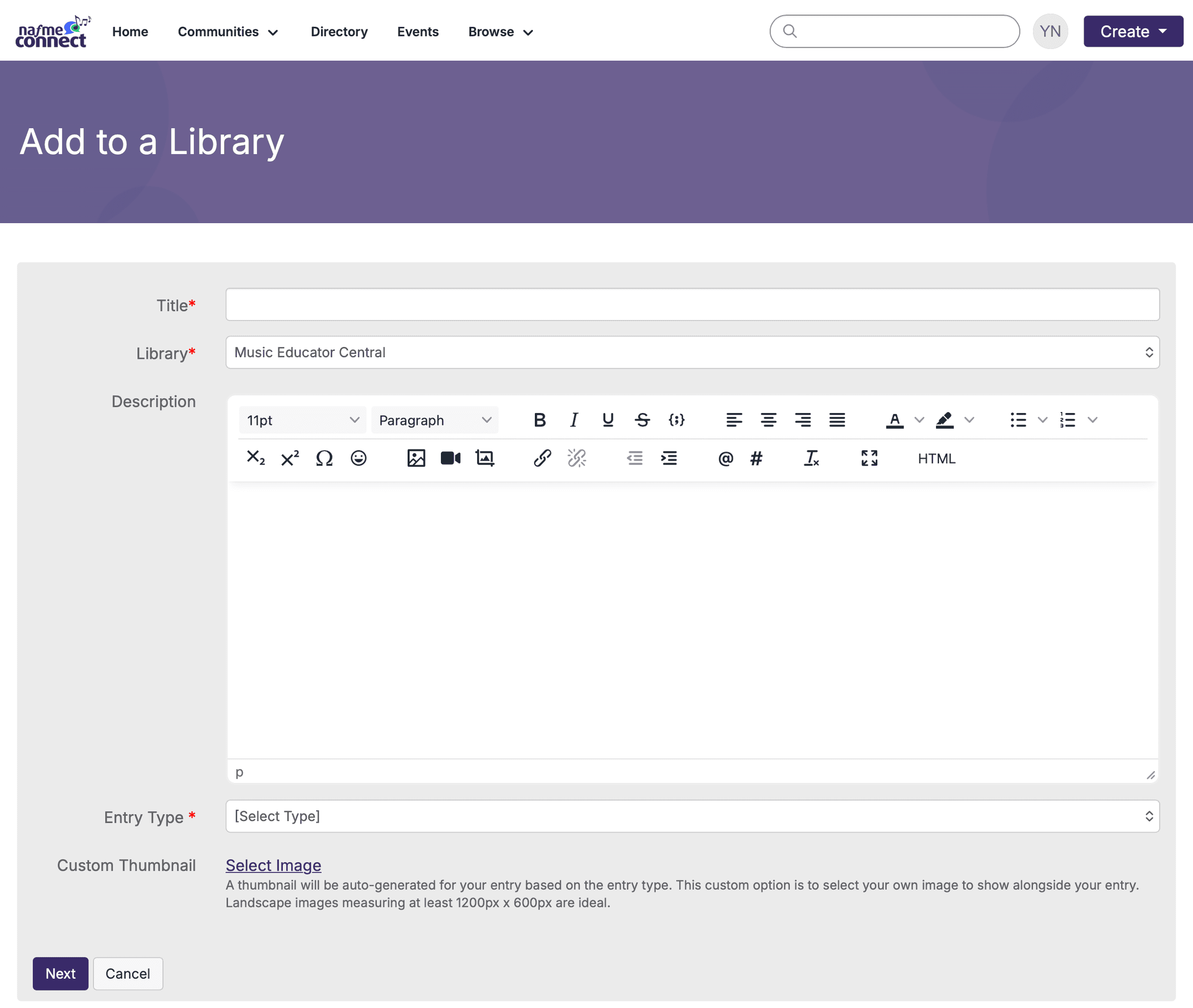
- Enter a descriptive title.
- Add a description if available.
- Select the appropriate entry/file type.
- Select Next, and upload the file.
- Complete any additional required information.
- Save or publish the library entry.
- Return to the library and locate the uploaded resource.
Best Practice
Use descriptive filenames and library titles.
Recommended: middle-school-concert-planning-checklist.pdf
Not Recommended: Document-Final2-new.pdf
Download an Item from a Community Library
- Navigate to the appropriate community.
- Open Library.
- Browse or search for the desired resource.
- Open the library entry.
- Select the file or Download option.
Manage Community Notifications
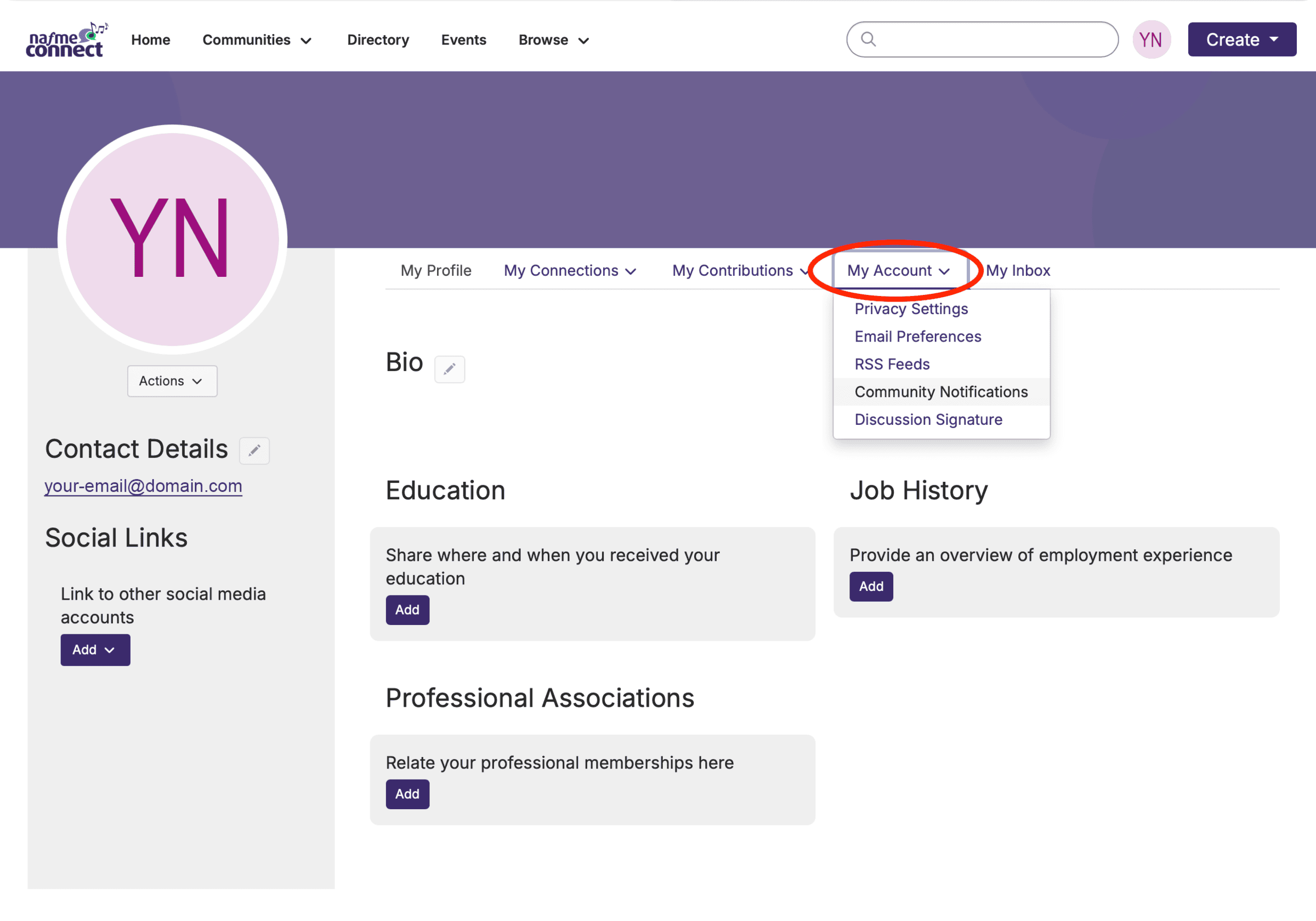
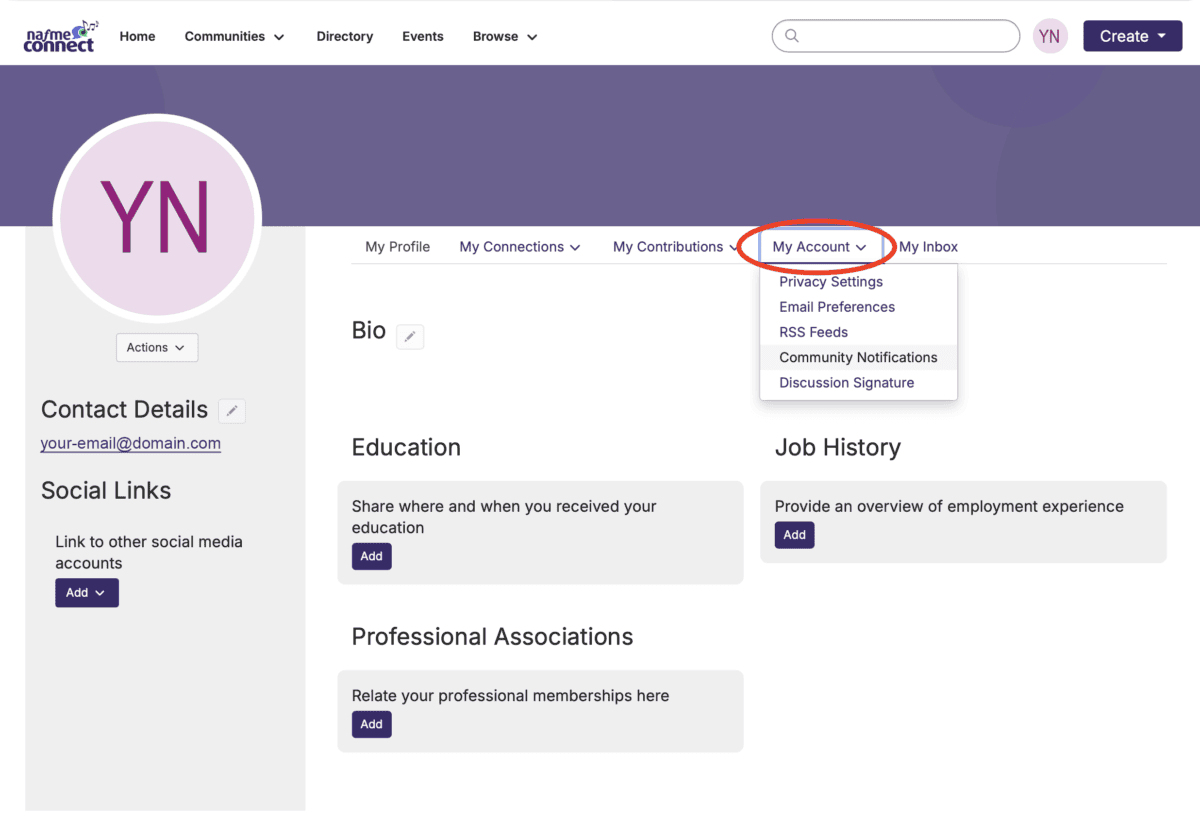 Open your account/profile settings(opens in new tab) and select community notification settings(opens in new tab).
- Review the communities to which you belong.
- Review the email preference for each community.
- Change one or more preferences.
- Save your changes.
Important
Configure email notifications for each community you are a member of.
View Another Member’s Profile
- Open a discussion.
- Select another member’s name or profile photo.
- Review the profile information available to you.
Quick Tip
You can also search for a member by selecting Directory from the main navigation bar at the top of the screen. Only information that members have chosen to share through their privacy settings is searchable.
Sign Out
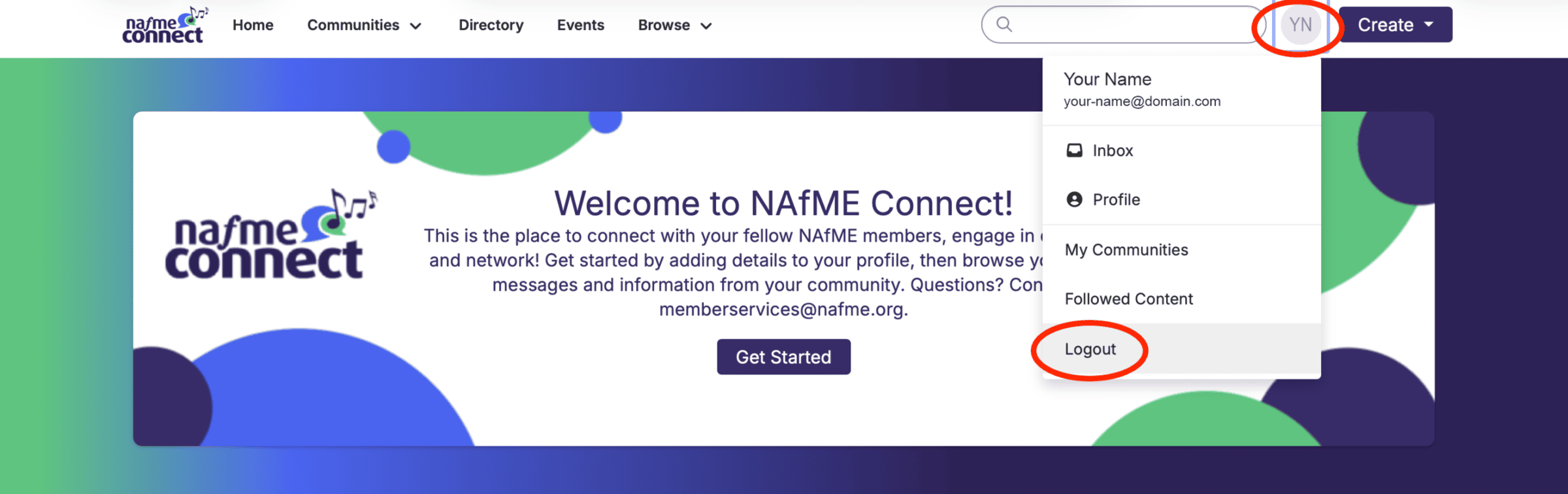
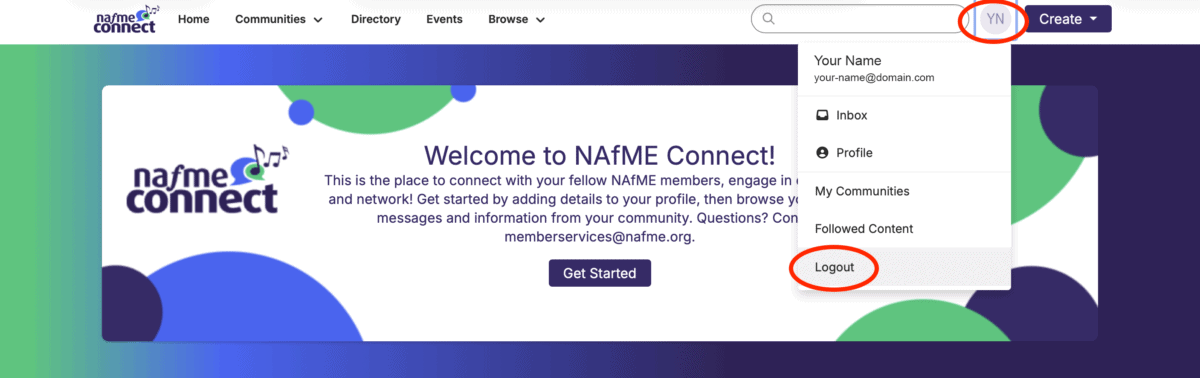 Click your user/profile circle in the main navigation.
- Select Logout.
- Confirm that the authenticated Connect session ends.
For More Information On Connect
Online Help/FAQs
- General (opens in new tab)
- Contacts / Connections(opens in new tab)
- Communities / Discussions(opens in new tab)
- What are communities?(opens in new tab)
- Which communities do I already belong to?(opens in new tab)
- How do I join/subscribe to a community?(opens in new tab)
- How can I control the frequency and format of emails I receive?(opens in new tab)
- How do I leave a community or unsubscribe from a discussion?(opens in new tab)
- How do I respond to others’ posts?(opens in new tab)
- How do I start a new discussion thread?(opens in new tab)
- I’m having trouble viewing the HTML email messages. How do I fix this?(opens in new tab)
- Can I search for posts across all the communities?(opens in new tab)
- How do I see a listing of all of the posts to a specific community?(opens in new tab)
- Library / Resources(opens in new tab)
REVISED 09/2026

Explore More